Product & Web Improvements at TALtech
Using insights from customer support to guide design decisions
Metadata
- DatesDates:
- Mar 2021–Mar 2024
- RolesRoles:
- Designer, Developer, Video Editor
- MediumsMediums:
- Code, Web, User interface
- ToolsTools:
- Next.js, Supabase, Cloudflare (Workers, R2), Mintlify, Claude Code, Cursor, Figma, WordPress, Final Cut Pro
- TypeType:
- Part-time
- CollaboratorsCollaborators:
- VP of Sales, Wordpress agency and contractors
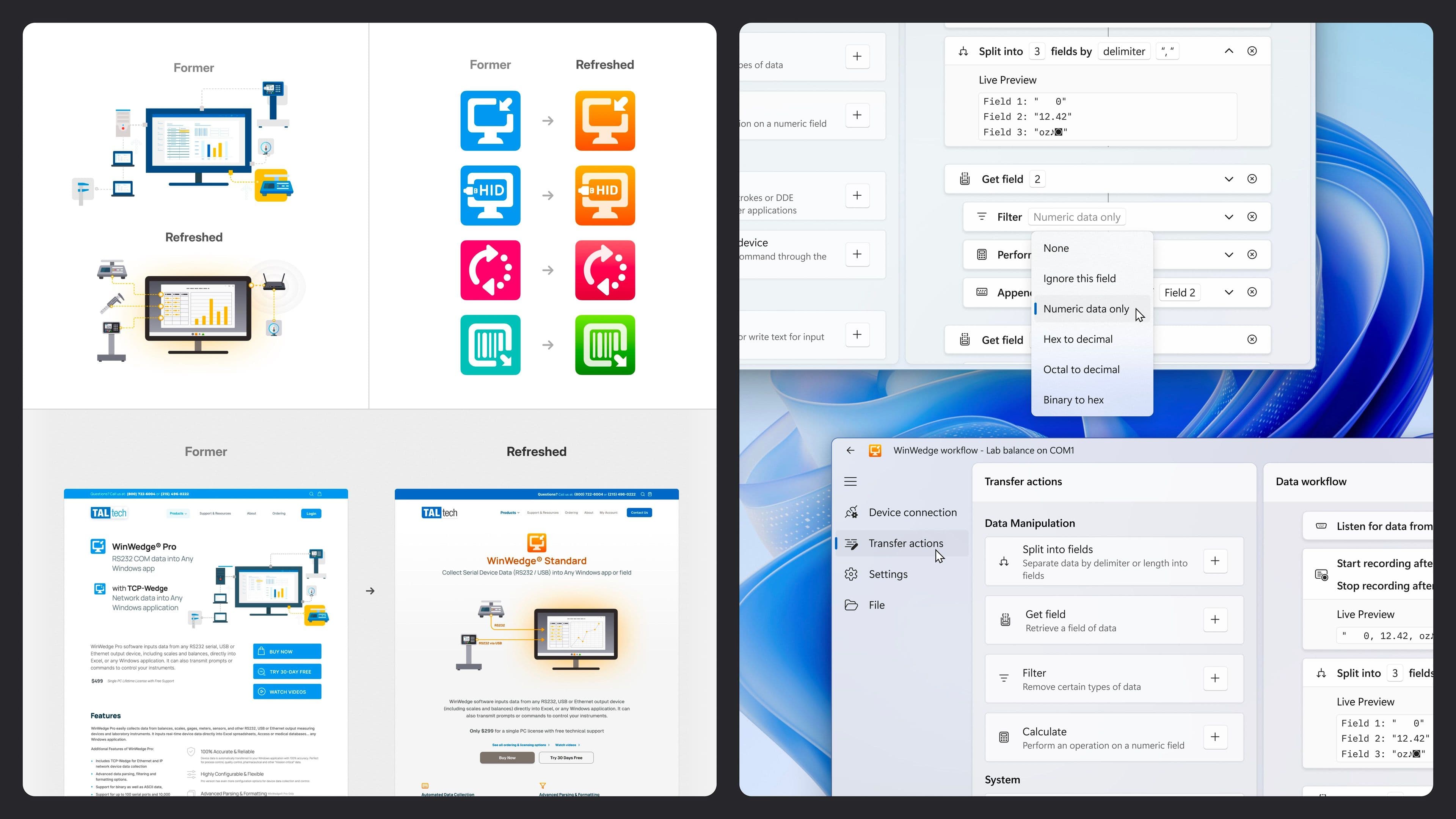
TALtech is a long-standing B2B software company with a mature software product line and a stable, multi-decade customer base from small labs to Fortune 500 companies. As many of its customers have depended on its software for decades, most of its systems—from the product interfaces to its internal tools—are legacy with minimal updates.
I was initially hired for a support and administrative role, which gave me direct insight into customer needs and operational gaps. In between daily tasks like customer emails and order processing, I started taking on design and product work to address the issues I was seeing.
Working with the VP of Sales, I helped modernize the website, produced new tutorials to replace outdated ones, streamlined internal documentation, and designed a clearer, more guided interface for the flagship software. My role was to identify and execute improvements within the existing technical and organizational constraints.
Outcomes
- Designed a guided, single-window interface for the flagship software that unified scattered setup functions and addressed recurring customer confusion—informed by firsthand support insights
- Led the website modernization effort with the VP of Sales—streamlined 500+ pages into focused content, created wireframes to guide our agency partner, and refined the design for our B2B audience
- Produced new tutorial videos and support documentation to replace outdated materials and improve the customer onboarding experience
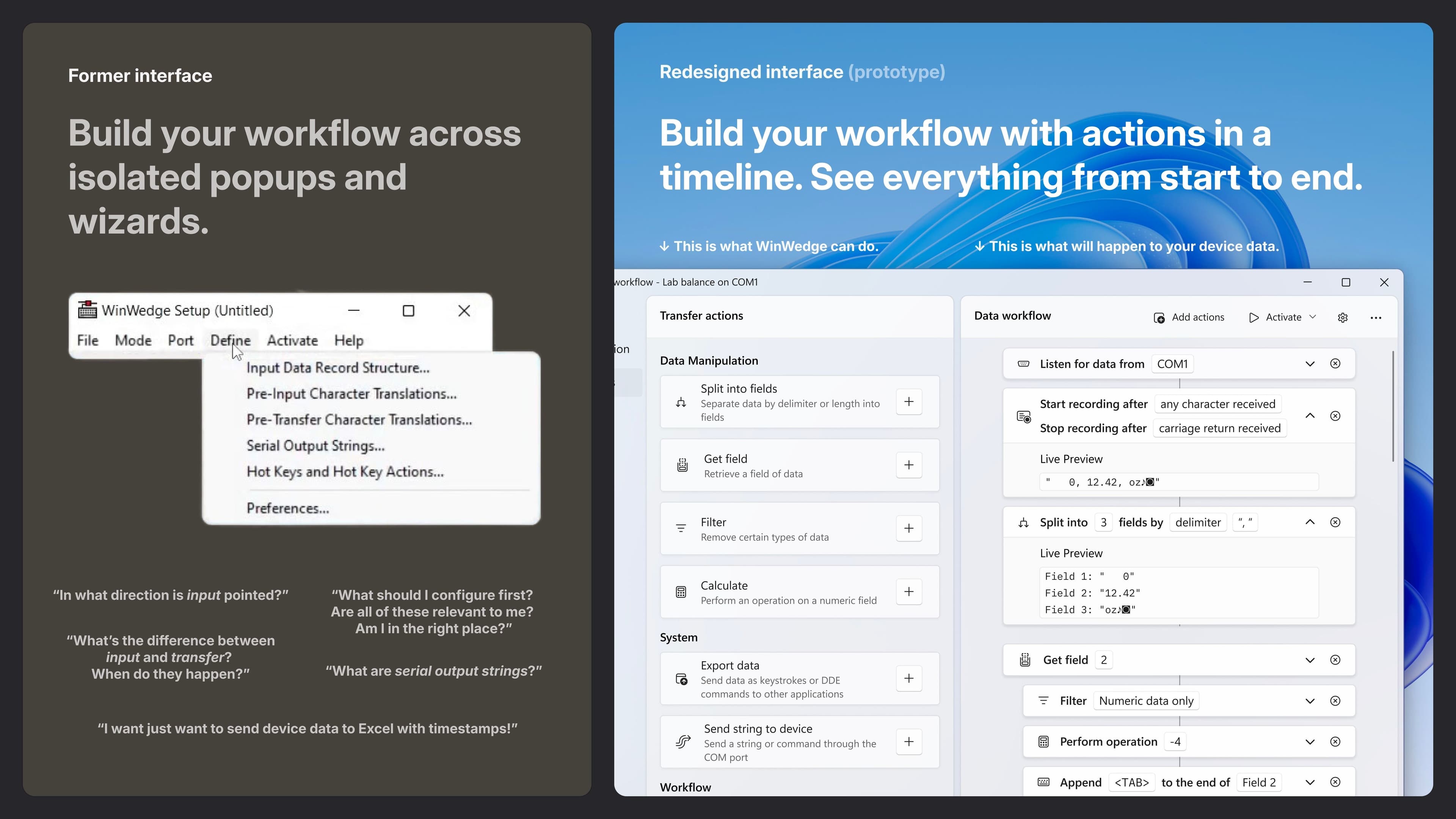
1. Unifying WinWedge’s scattered setup into a single window
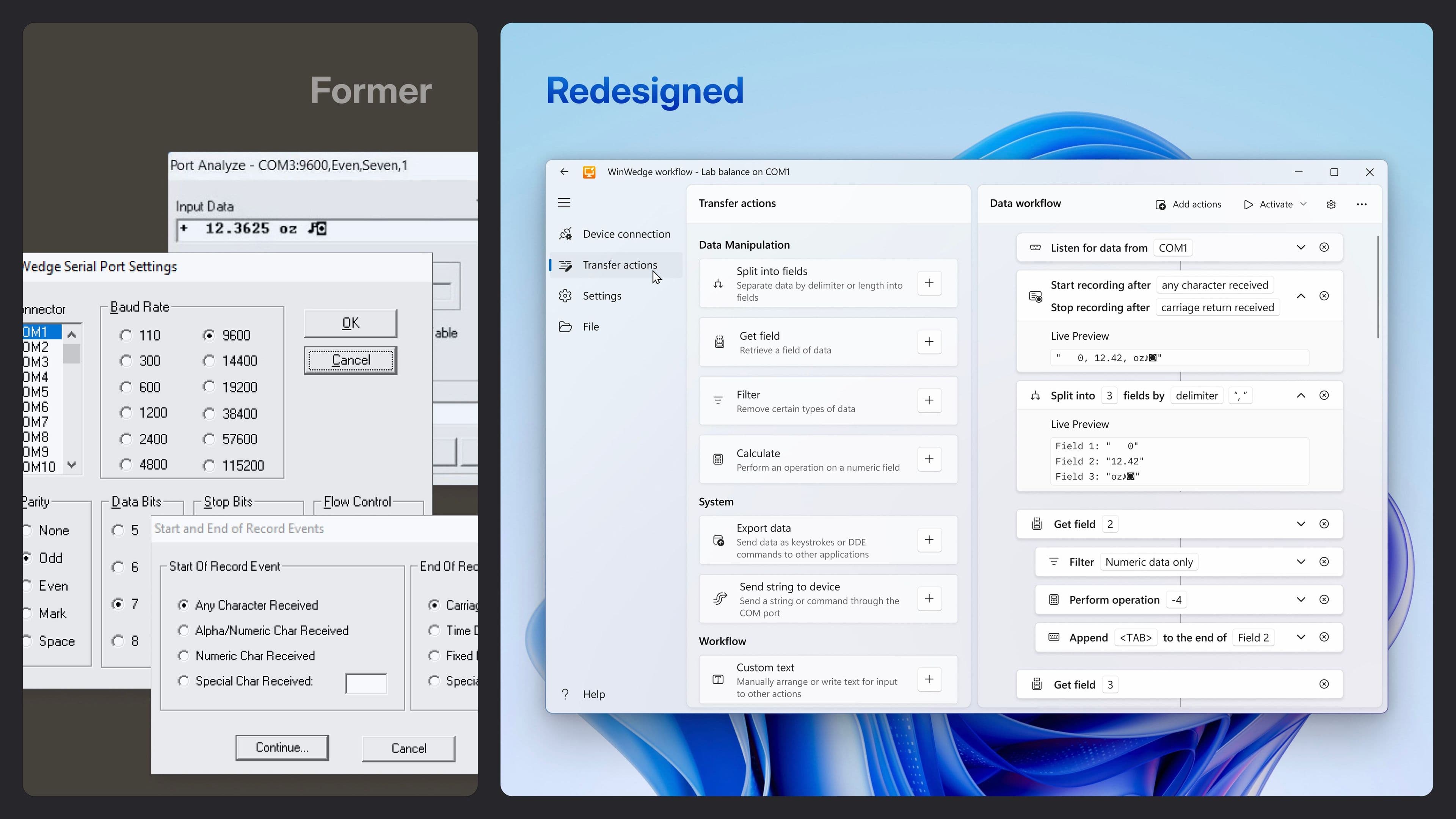
I was tasked with designing an exploratory concept for WinWedge, our flagship data collection software. WinWedge collects data from serial devices—scales, sensors, lab equipment—and routes it to PC applications like Excel or custom databases. You’d expect this functionality to be plug-and-play, but serial communication is an old, widely-used standard where devices communicate in wildly different formats. WinWedge needs to know how each device structures its data stream, how to parse that into usable fields, and where to send the results. This means users configure the connection settings, define parsing rules, and specify output destinations for each device they work with.
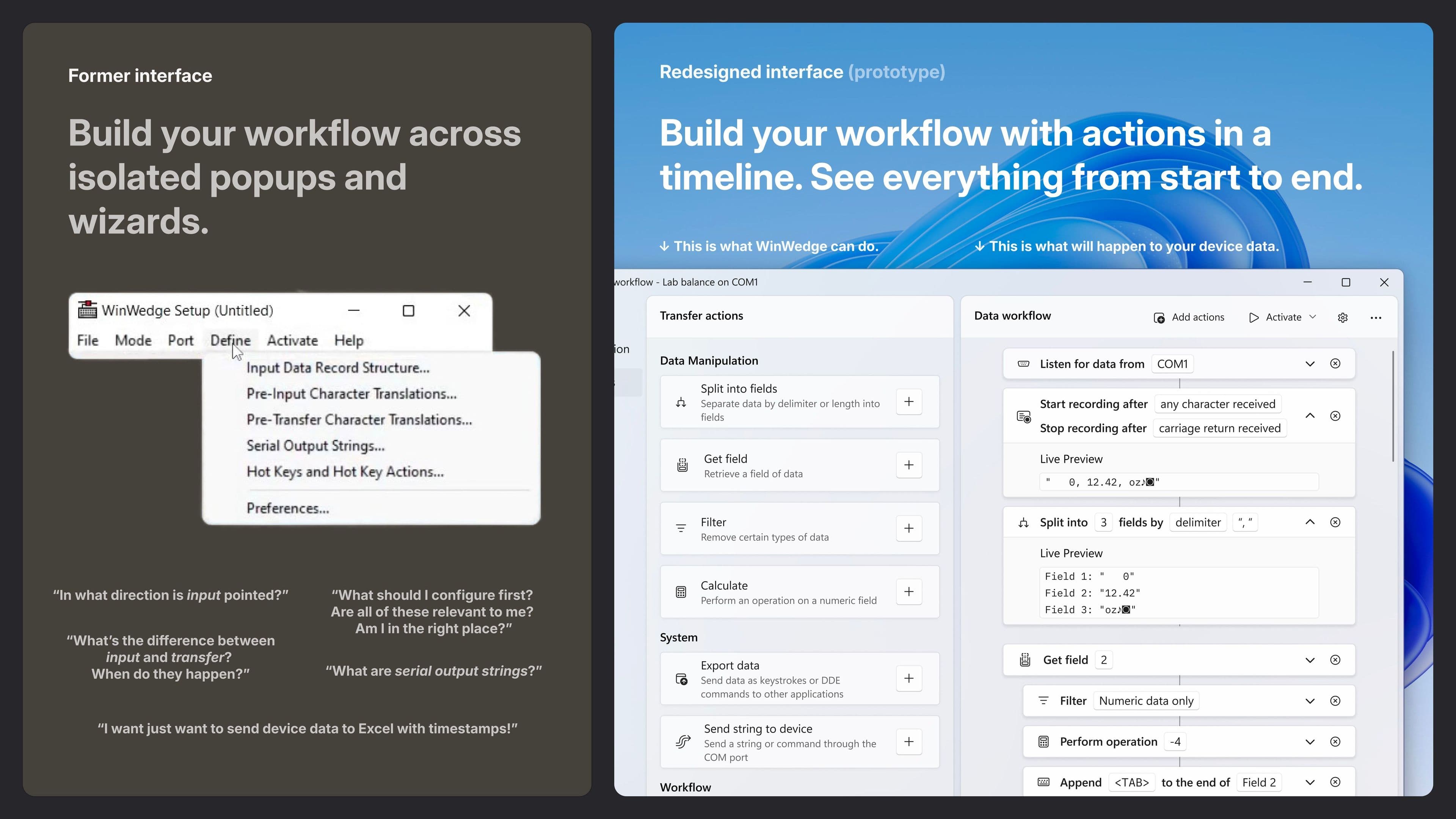
Our software’s flexibility lets users customize dozens of settings for different industrial uses, but our support calls showed this flexibility often confused new users. I had previously made support guides and tutorial videos to aid the learning curve, but saw that the interface itself could visually guide users through setup, so they wouldn’t need separate guides.
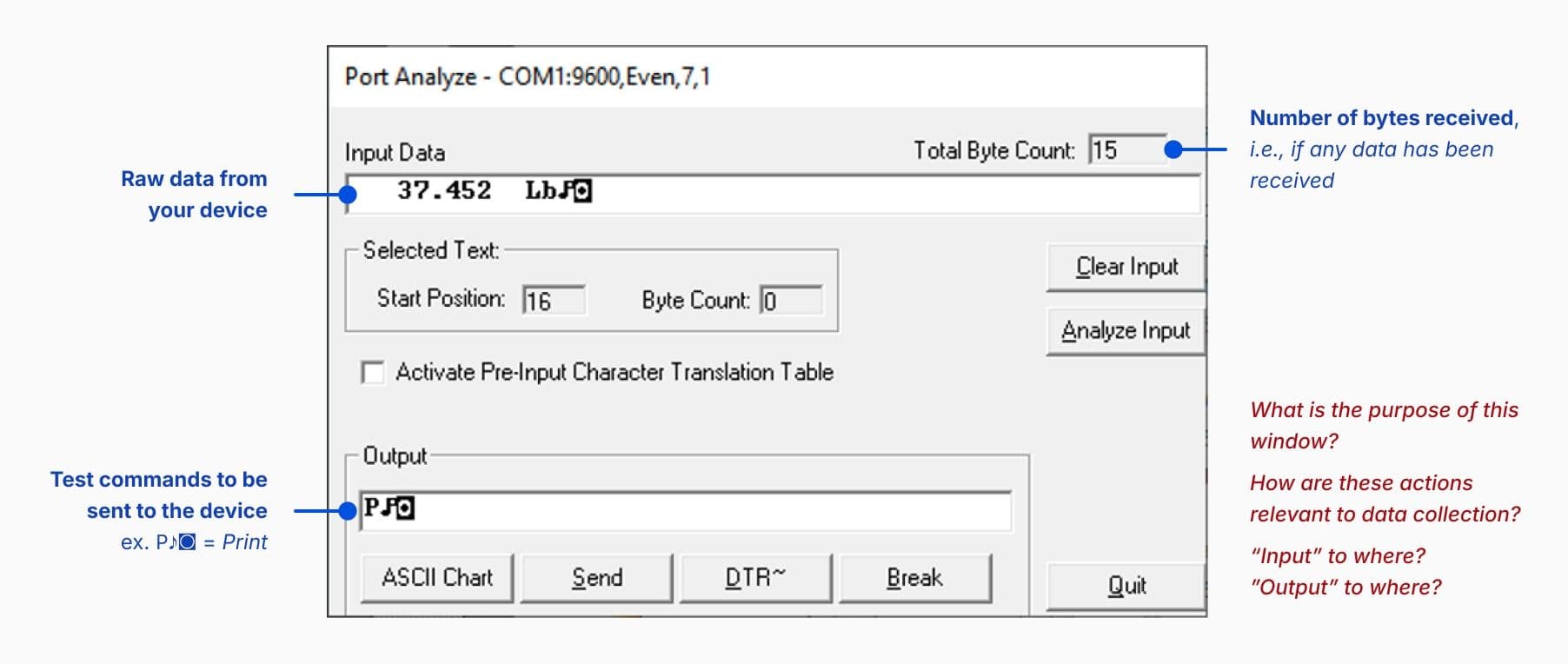
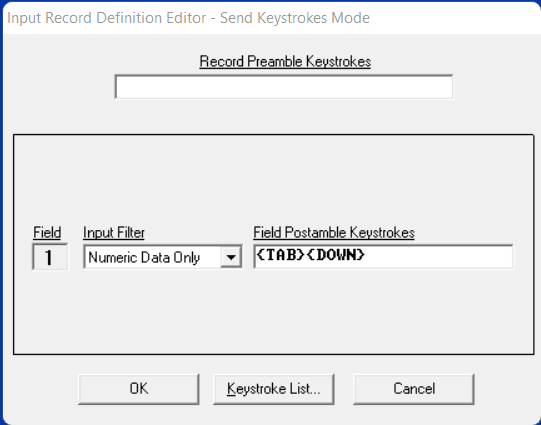
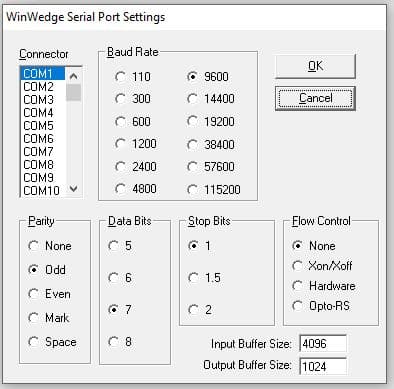
Usability issues:
- Navigation relied entirely on menu bars, with an unclear sense of progress through setup.
- Setup steps were split across disconnected, single-view windows, making users lose context during configuration.
- Technical terms and unclear labels made it difficult for non-technical users to understand basic functions.
These issues frequently surfaced in our support conversations with non-technical users.
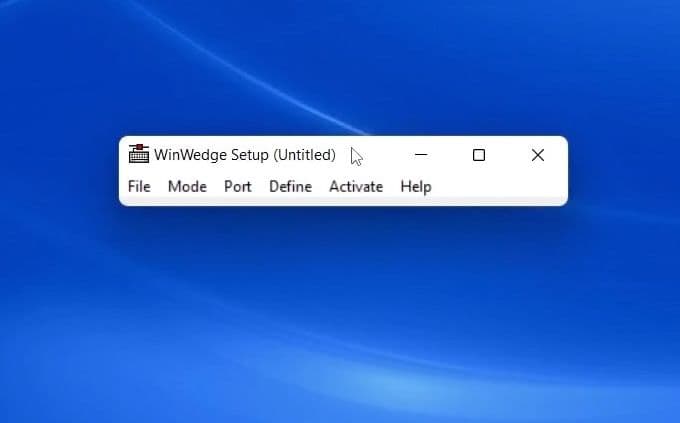
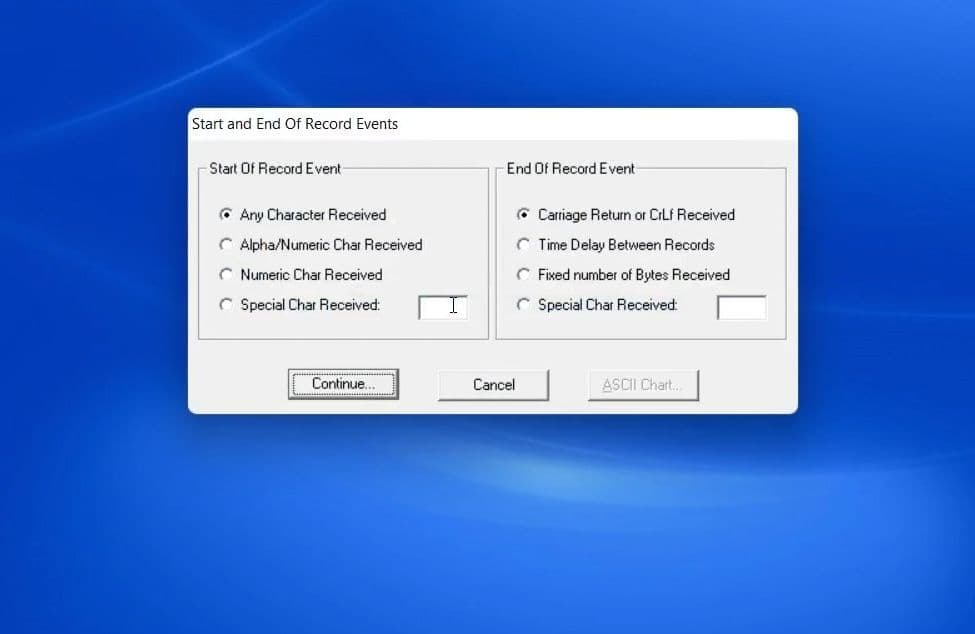
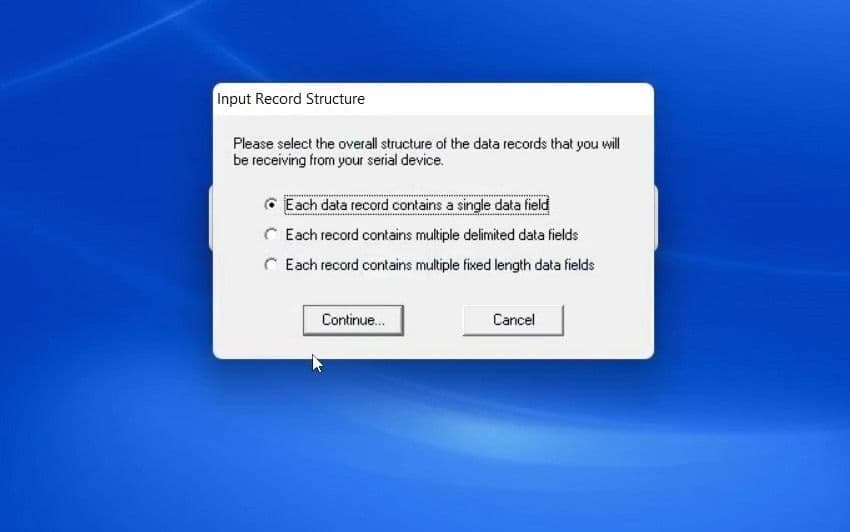
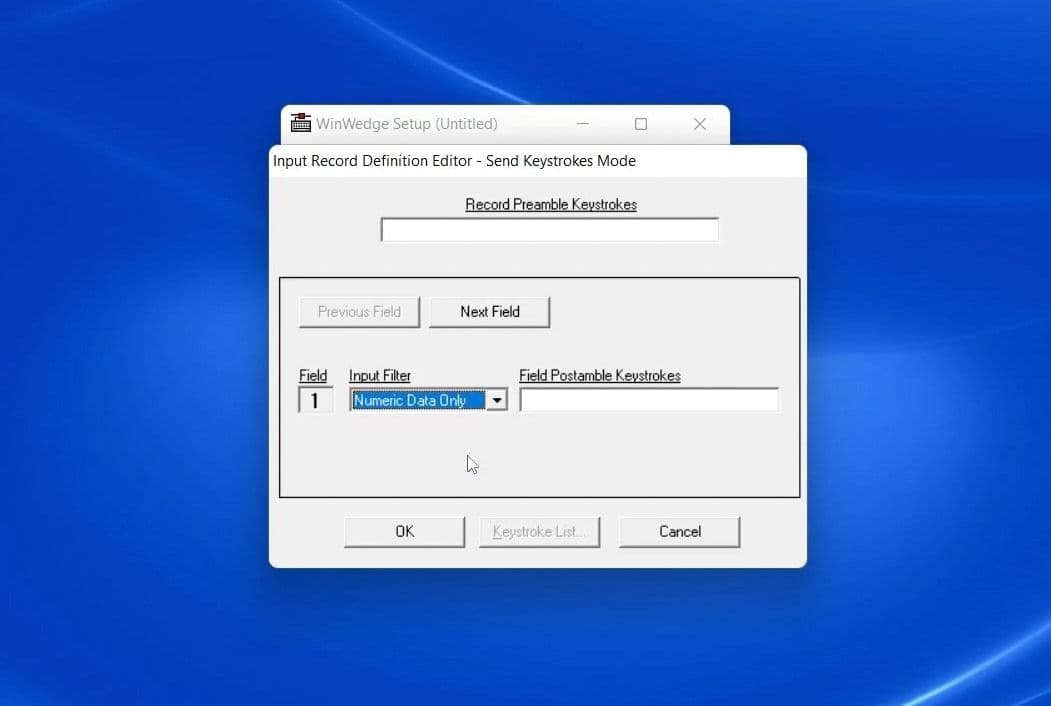
Grounding the concept in Windows design patterns
I focused on:
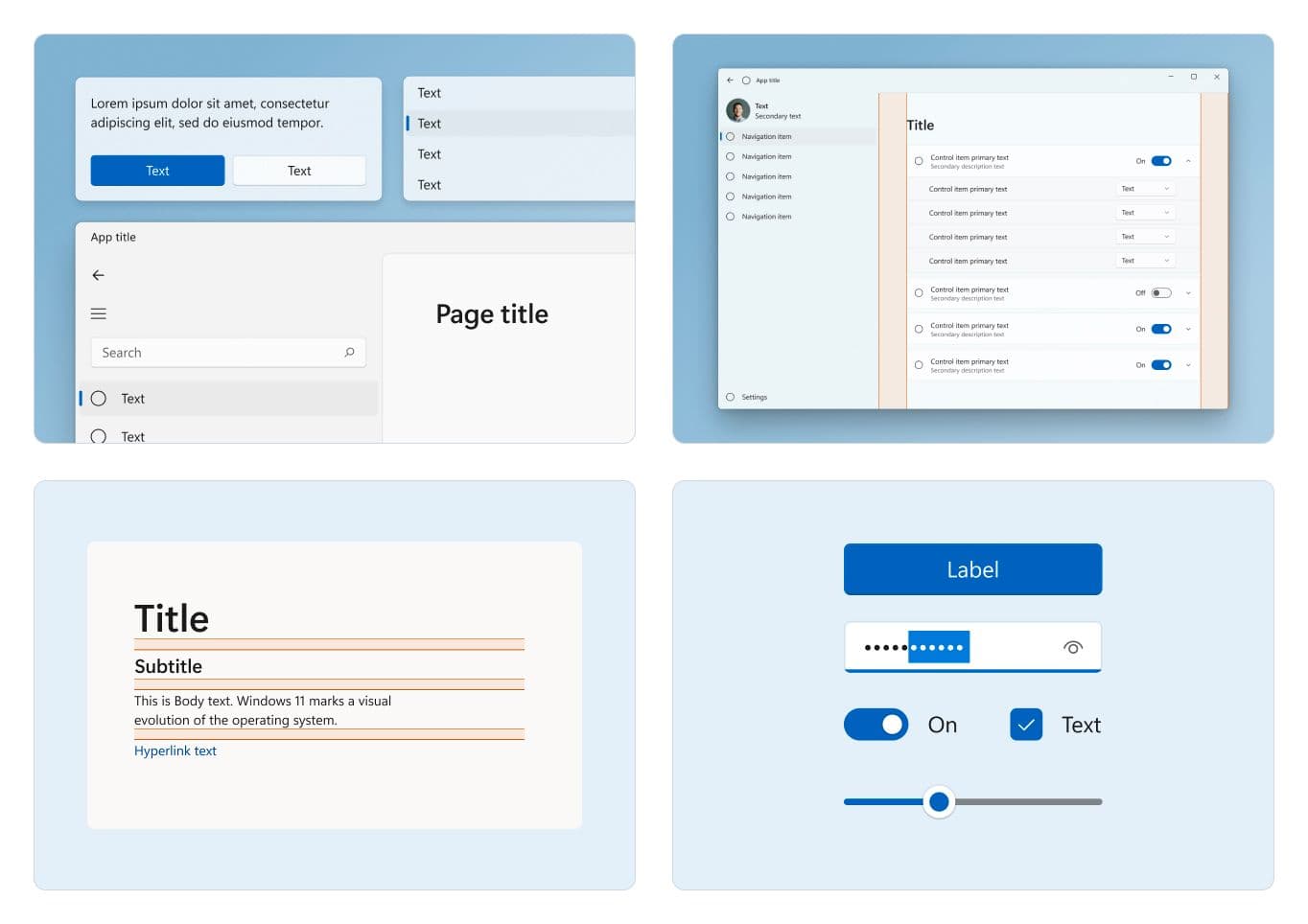
- Studying patterns from other software with configuration-centric interfaces
- Aligning with modern Windows UI patterns, as WinWedge already used native system components to feel integrated with Windows. Updating to current design patterns would maintain that trust while making the interface feel more familiar to users on newer Windows versions.
- Making extensive customization options more discoverable, especially for occasional users reconfiguring hardware setups (many users only interact with WinWedge when hardware changes necessitate reconfiguration)
Inspiration from similar utility apps
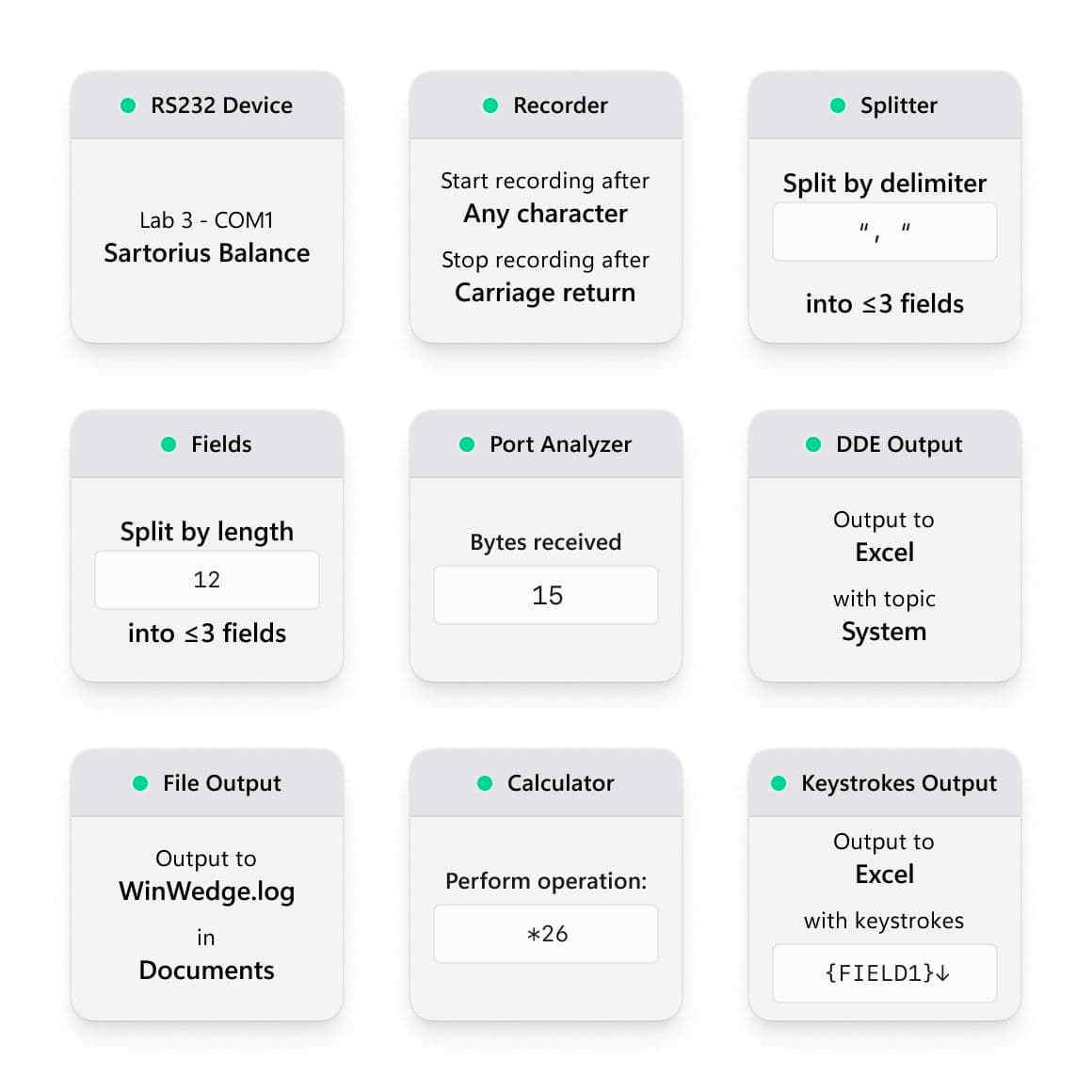
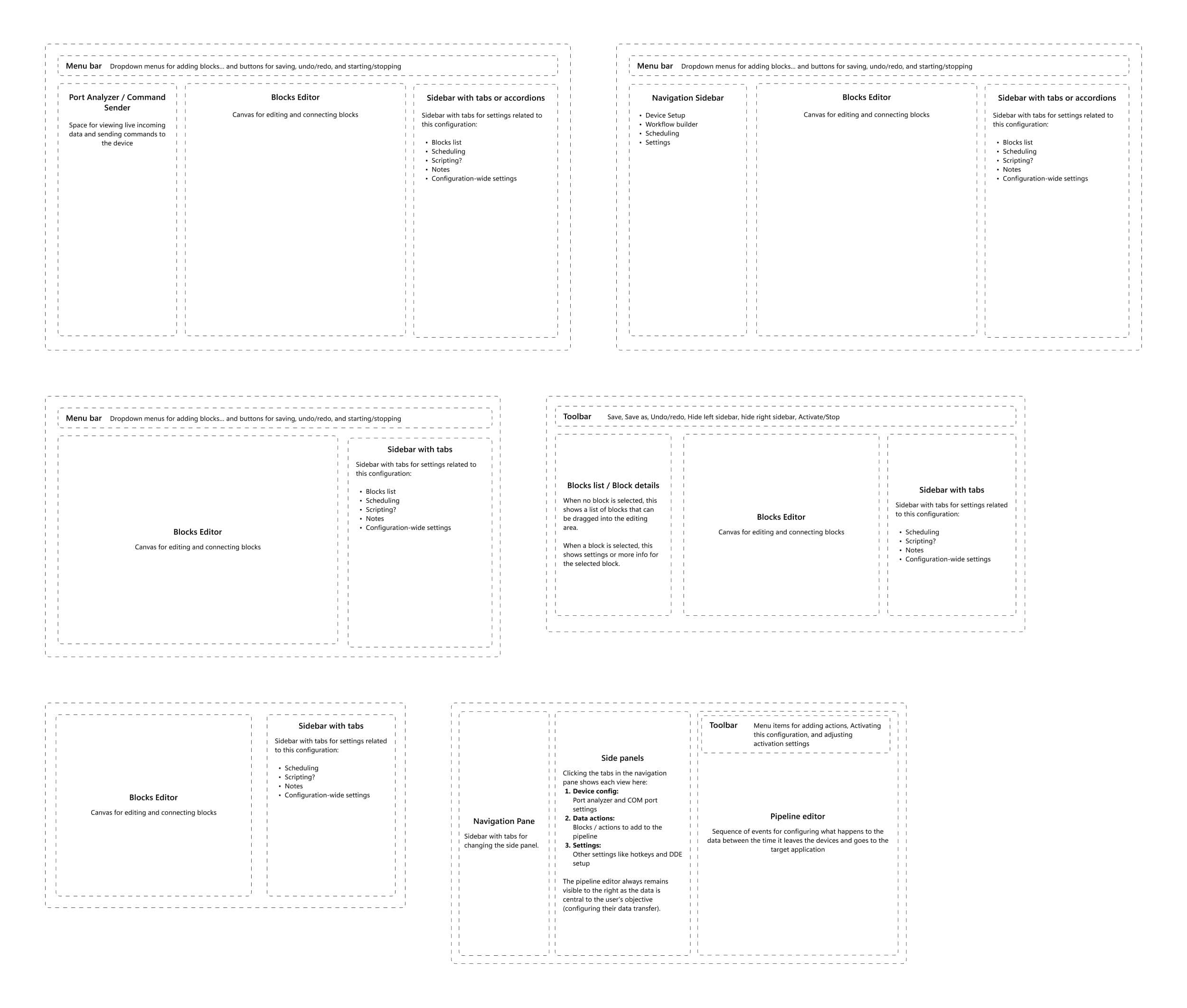
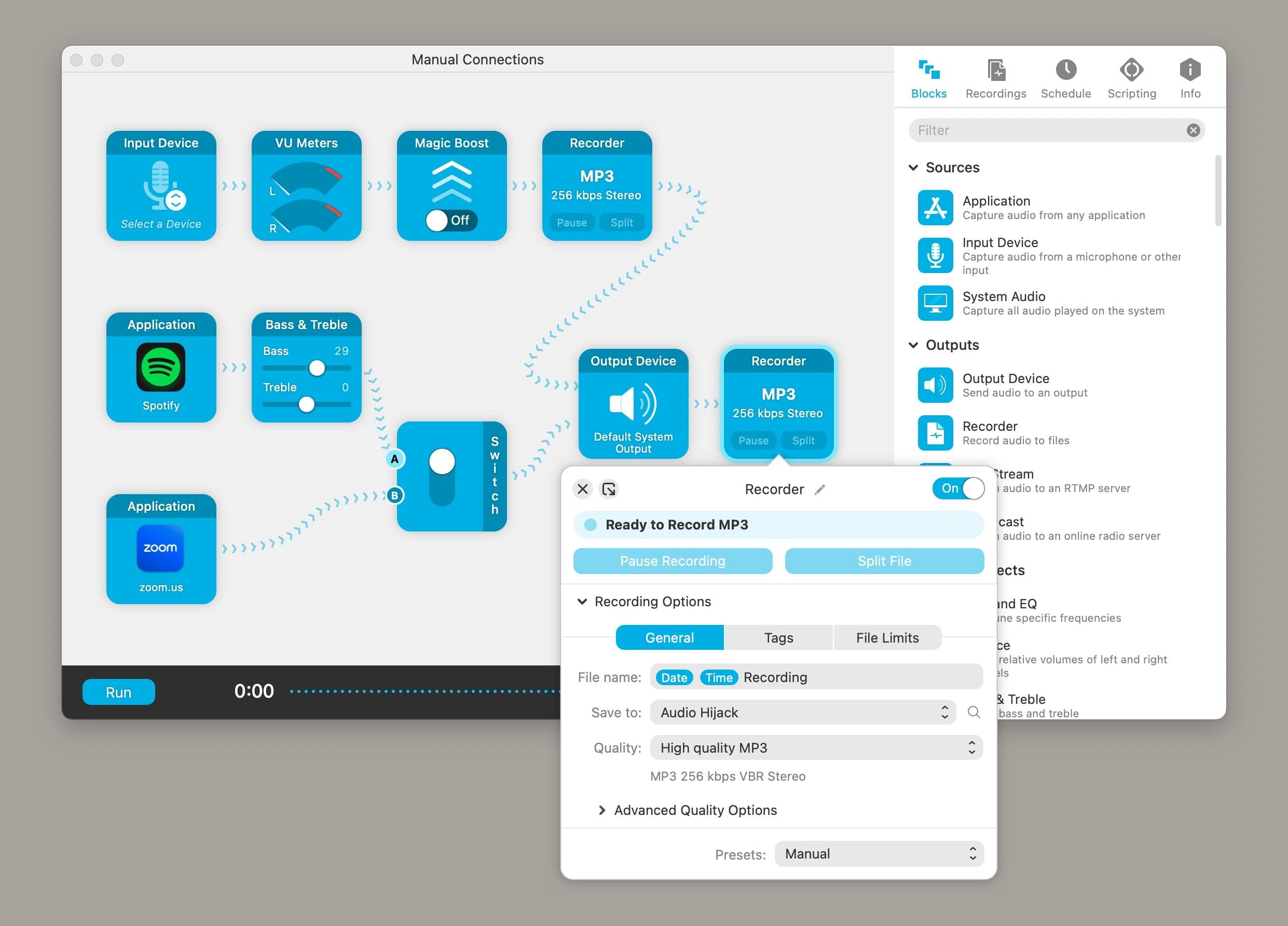
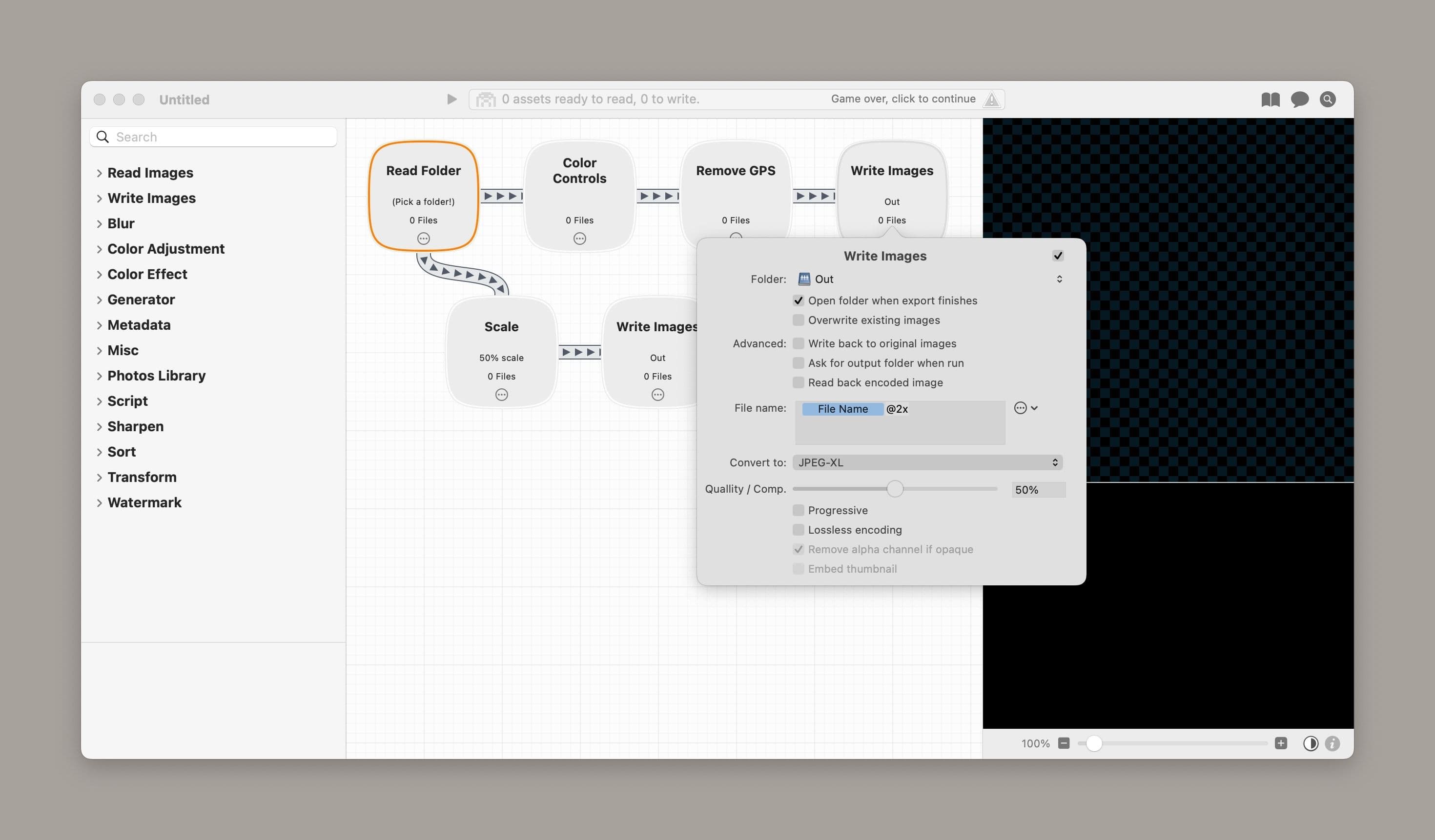
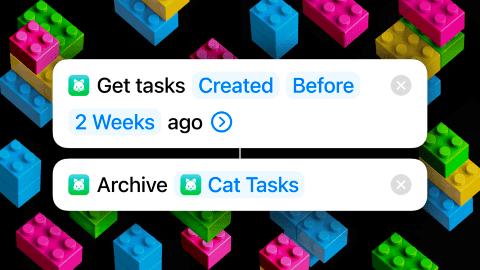
I studied how modern utility apps handle complex workflows, initially exploring user-friendly, node-based editors like Audio Hijack and Retrobatch. But WinWedge’s linear data flow didn’t suit a freeform canvas, so I shifted to Apple Shortcuts’ single-column design.
Shortcuts’ semantic fill-in-the-blank approach for its blocks better matched how our users expressed their needs: “I need to split the data using spaces into columns for the time, weight, and unit.”
The unified interface design
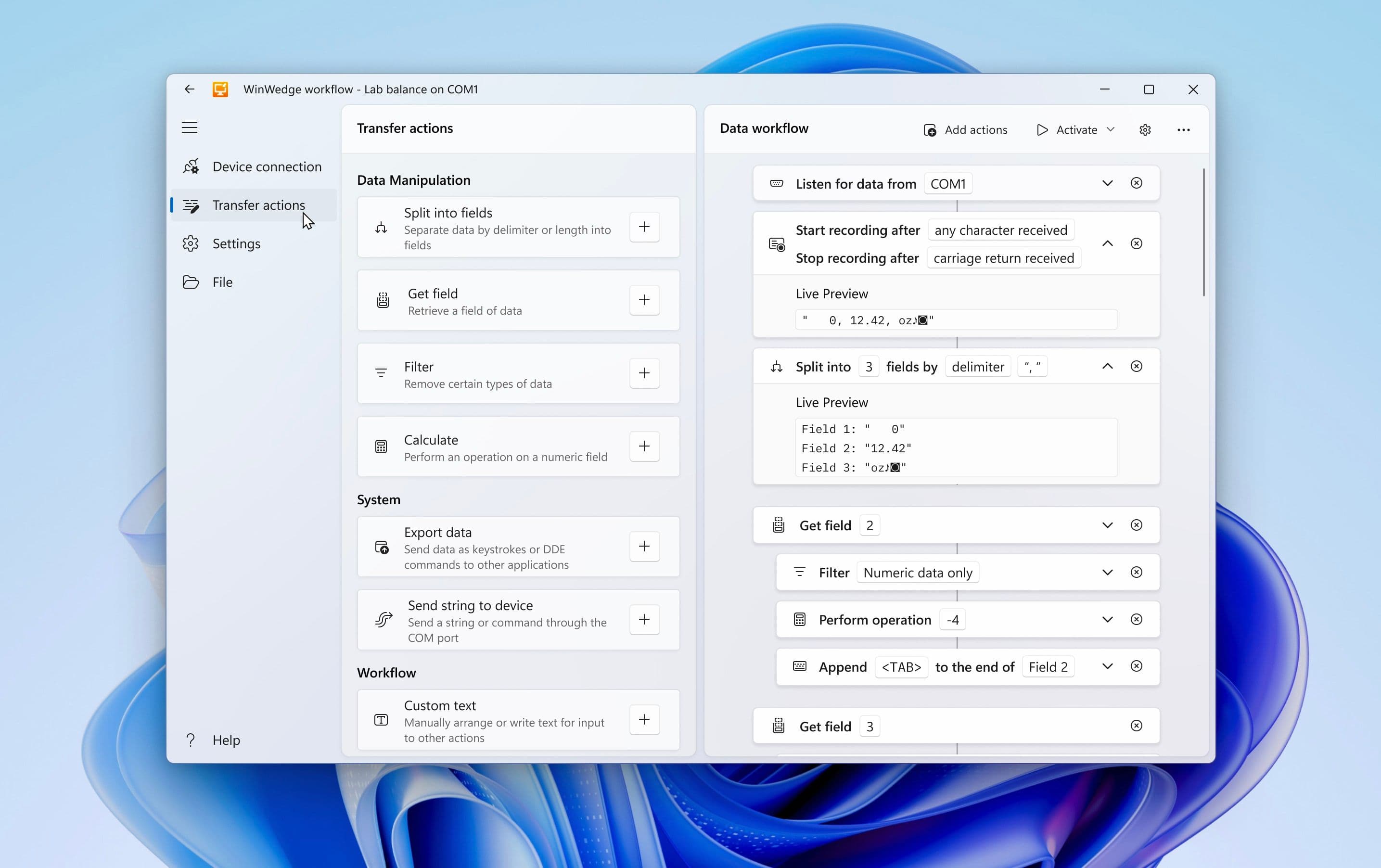
The resulting design unified scattered functions into a single window:
- A primary, persistent canvas showing the data workflow
- A sidebar organizing setup steps logically in tabs and collapsible cards
- Clear visual guidance through configuration
This approach allows users to plan data workflows while testing device commands, so they wouldn’t lose track of what they’d configured and why.
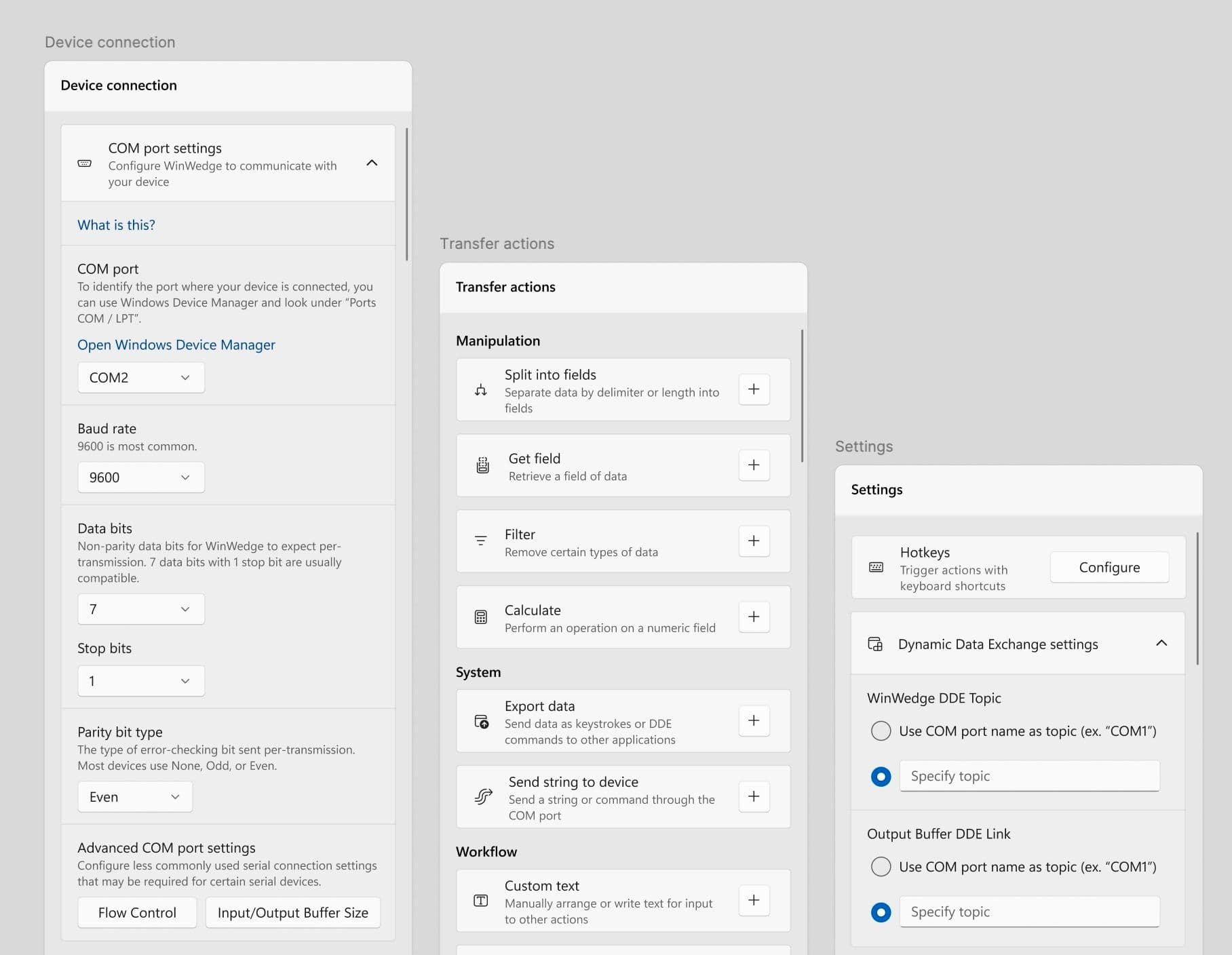
This approach offers:
- Visual clarity through connected actions, which make complex processes and relationships easier to grasp and debug.
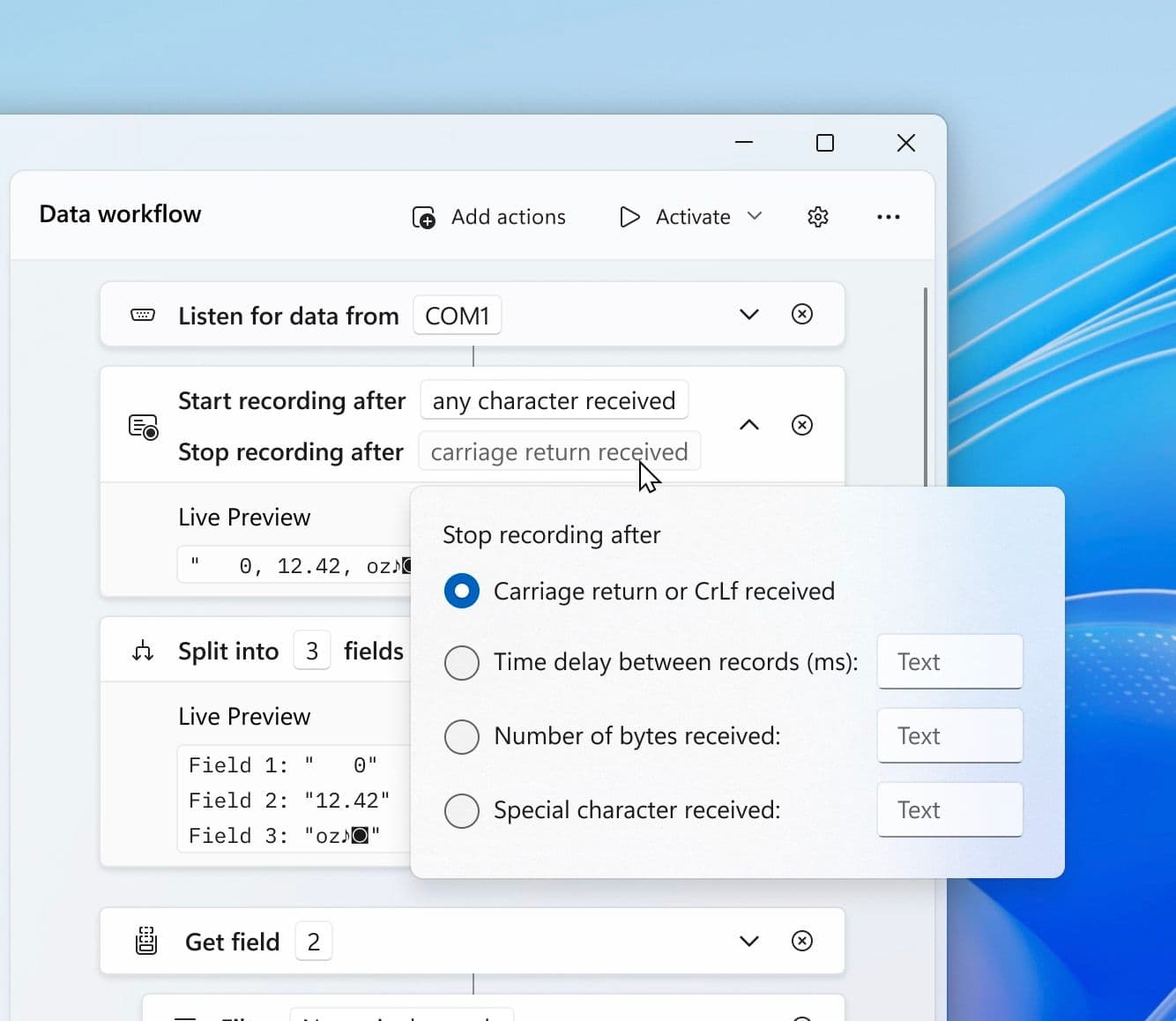
- Intuitive editing of data workflows by adding and arranging workflow blocks
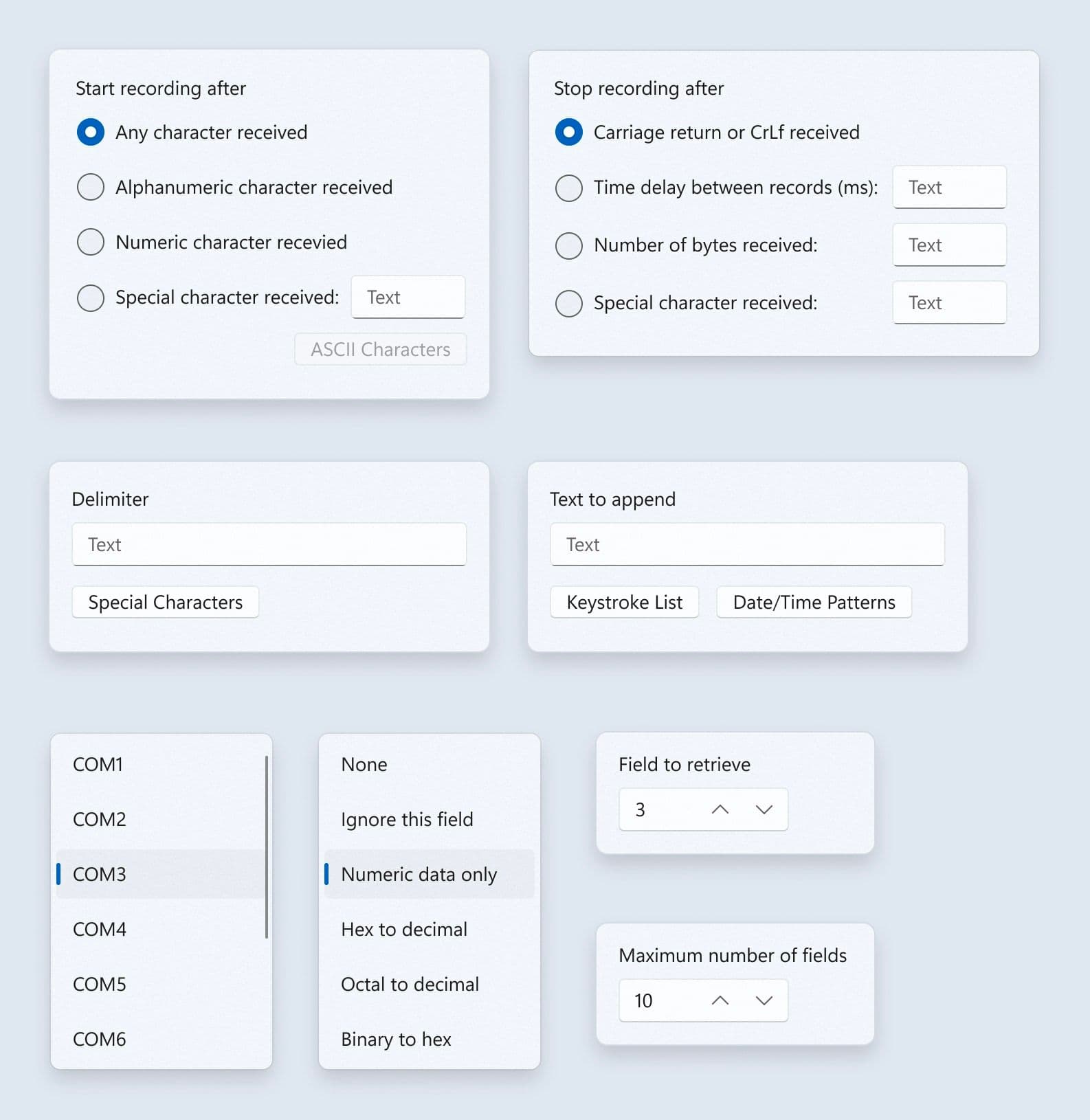
- Progressive disclosure of advanced options through input flyouts
- Modular foundations for adding or upgrading features later [^2]
Some self-skepticism to explore if I were to continue iterating on this:
- How might we refine the block-based workflow? While fully rearrangeable blocks offer flexibility, many operations need to follow a specific sequence. What would it look like if we introduced more guardrails to this approach
- How can we balance new and familiar patterns? While I removed the traditional menu bar to maintain focus on the guided navigation, we’d need to validate how this affects longtime users through testing. [^3]
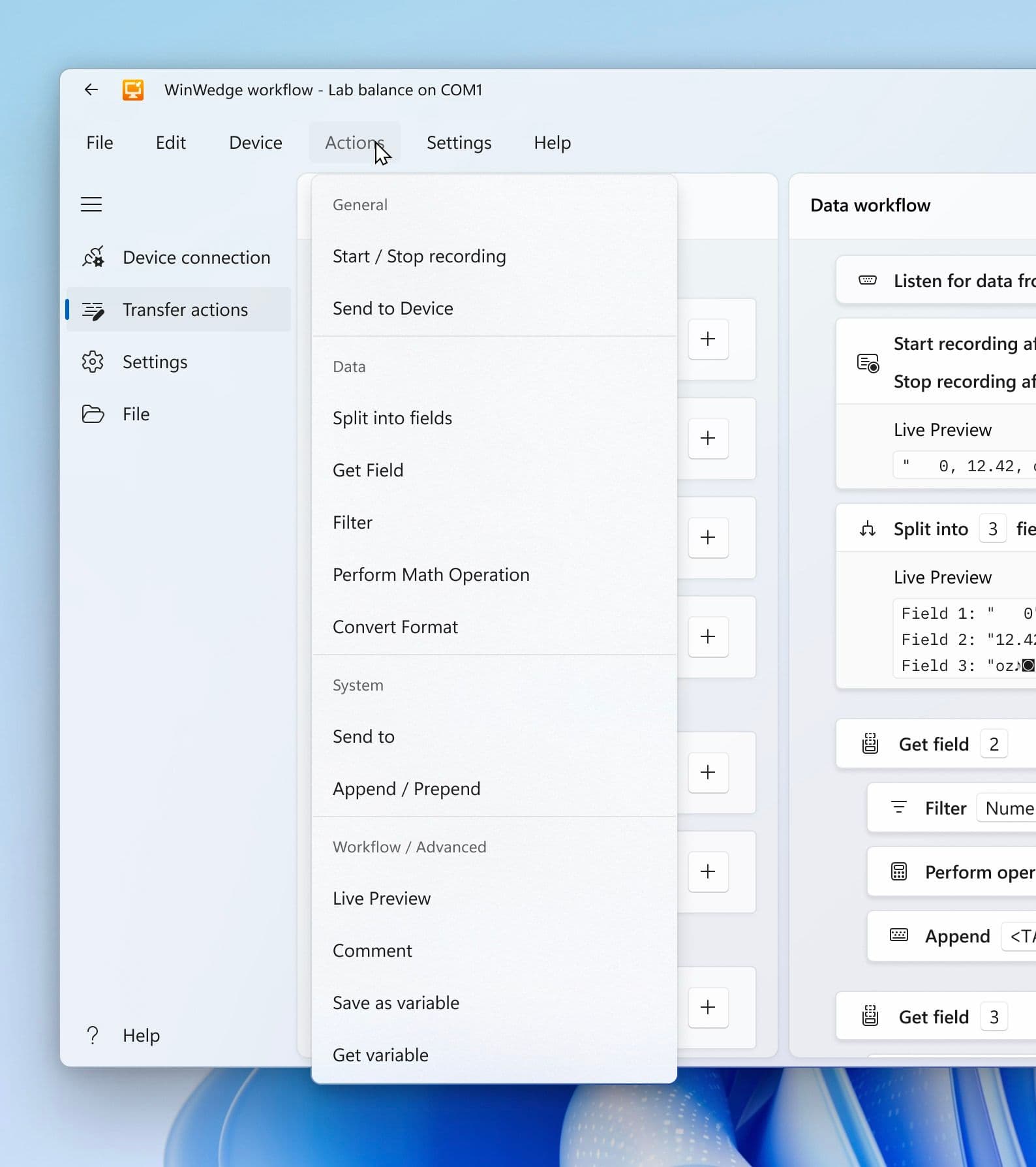
Clearer visual aids and setup experience
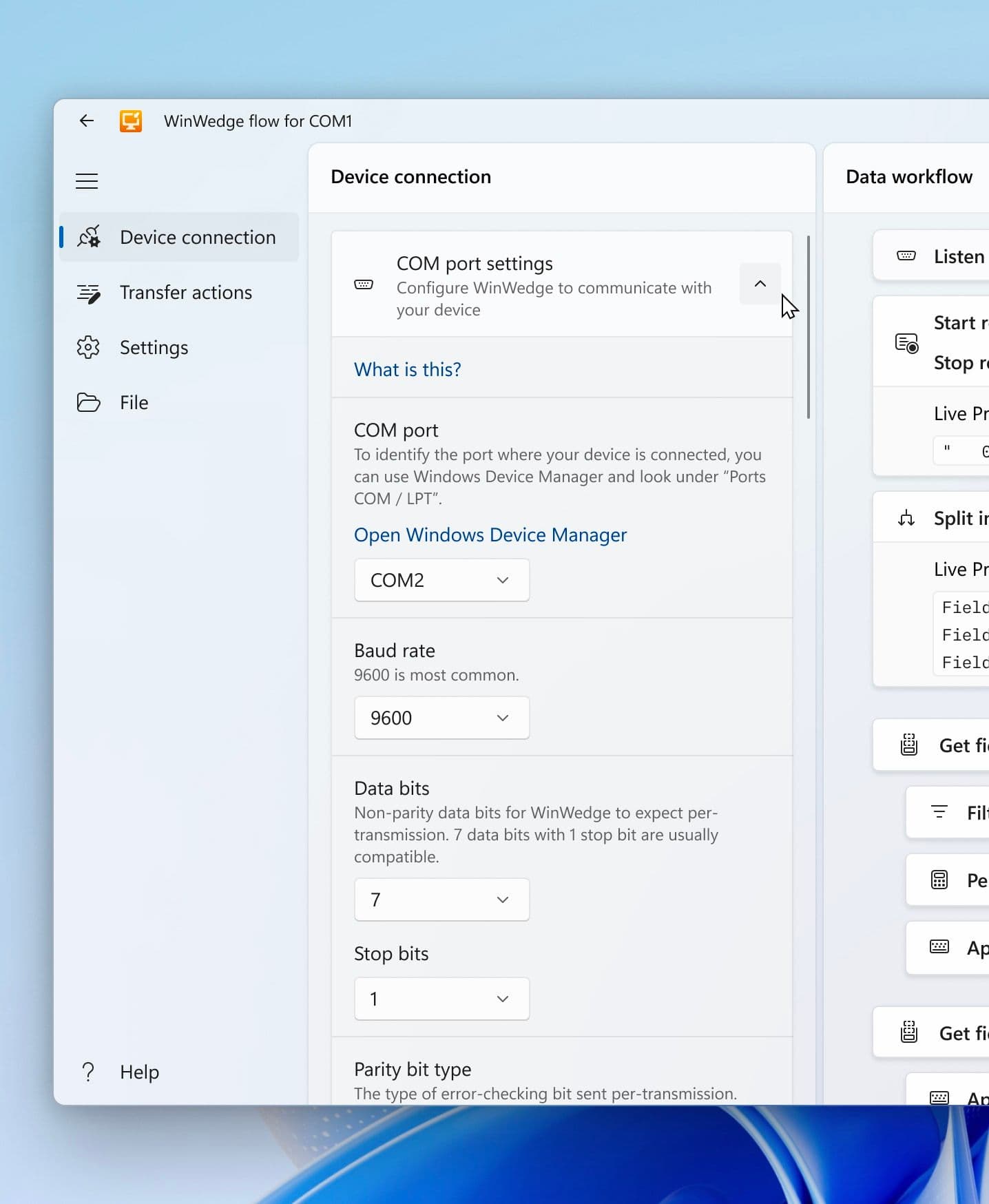
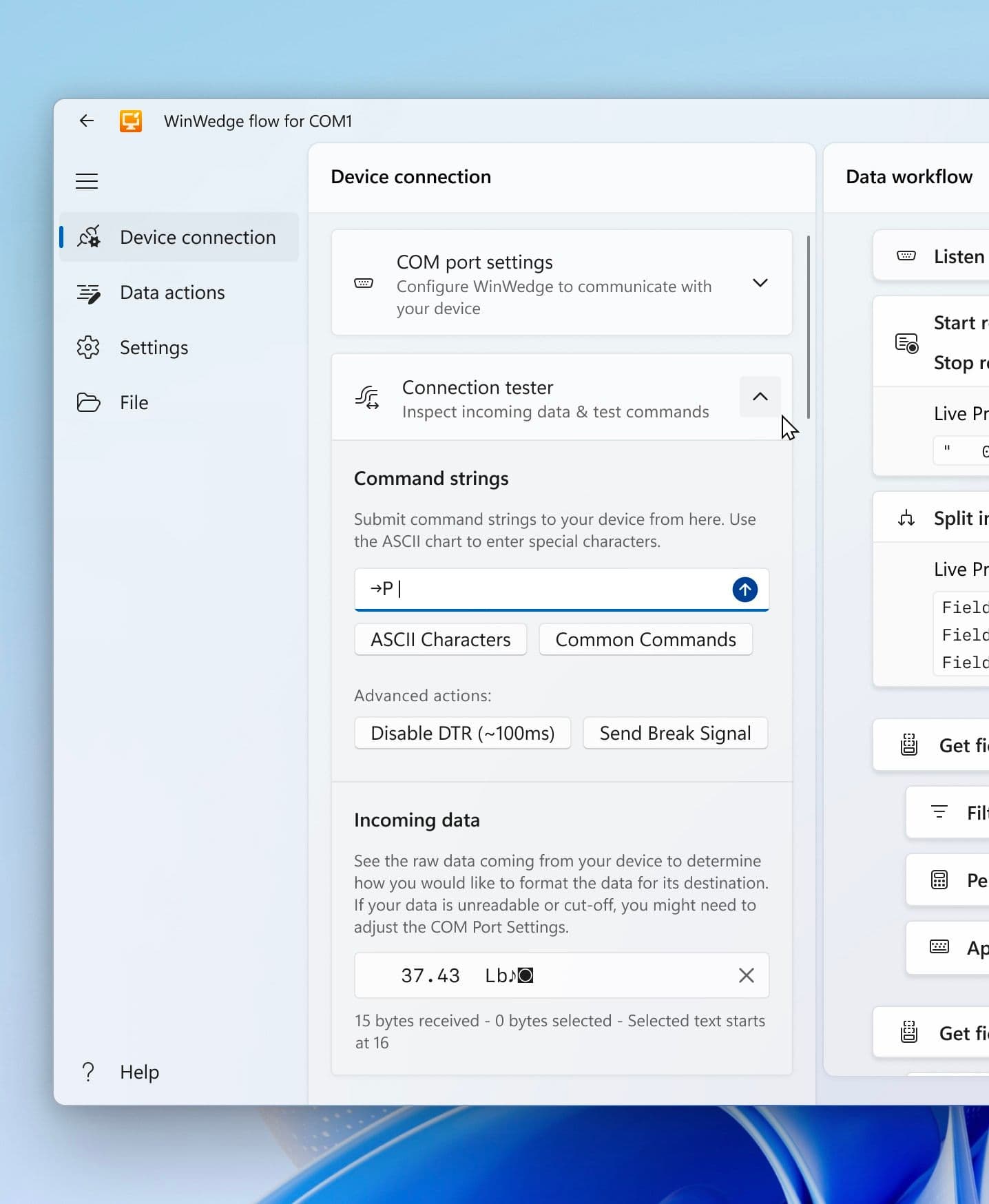
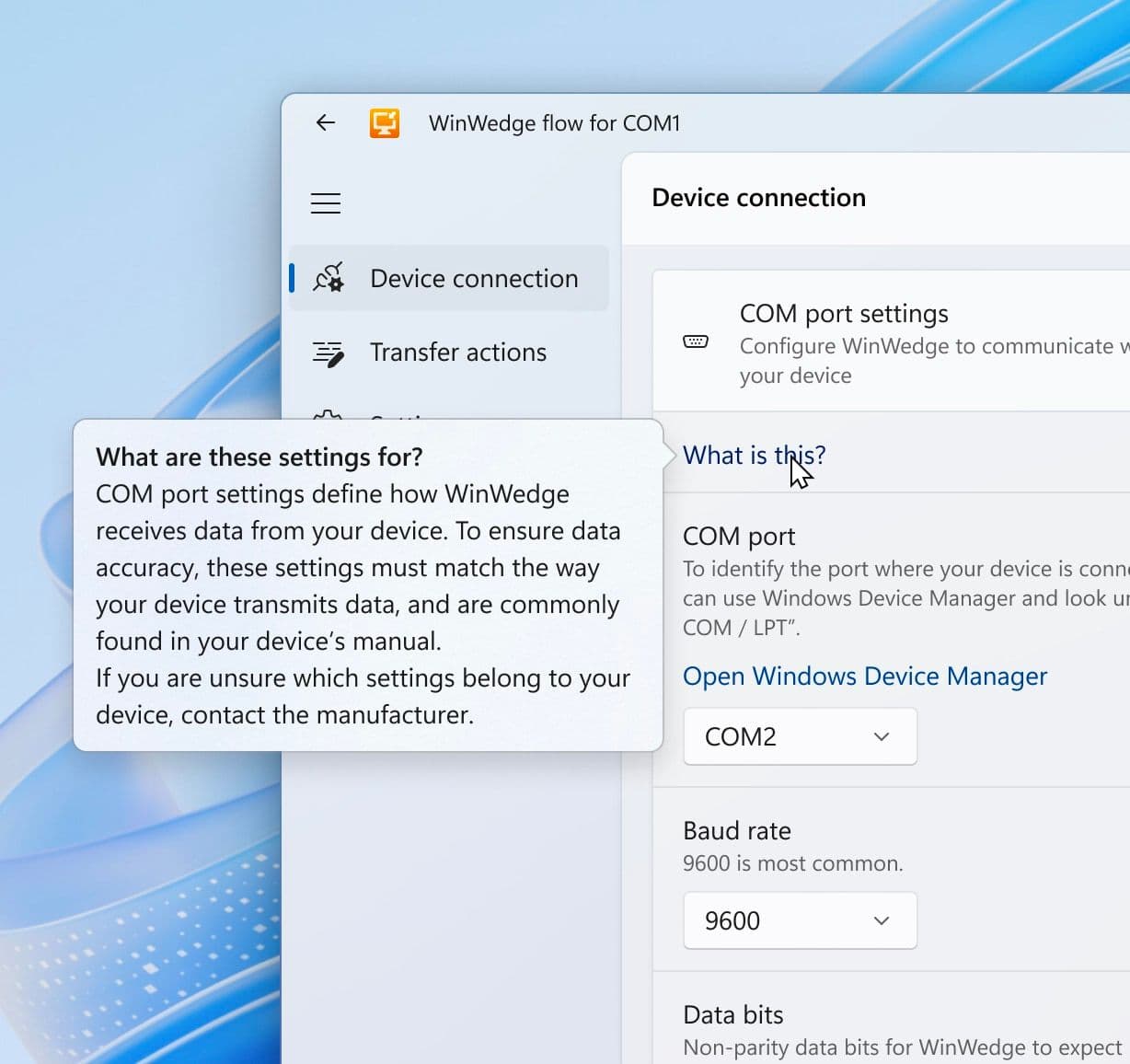
I also refined the interface language to better guide users:
- Clarified technical terms with action-oriented labels
- Added contextual help and common command suggestions
- Reorganized features based on usage frequency
- Integrated visual cues for easier navigation
2. Streamlining the website from 500+ pages to focused content
I also worked on redesigning the website. The existing site had several problems:
- Inconsistent layouts that didn’t work well on mobile
- Navigation that changed unpredictably between pages
- Technical content that wasn’t meeting customer needs
- A deprecated CMS that made content and code updates difficult
Working with a WordPress agency, the VP of Sales and I first streamlined the site structure from 500+ pages to a focused core set—both to reduce costs and clarify exactly what needed redesigning.
Together, the VP and I streamlined the site structure. We…
- Reduced over 500 pages to a focused core set
- Reorganized information around common customer questions
- Created clearer product descriptions to address typical points of confusion
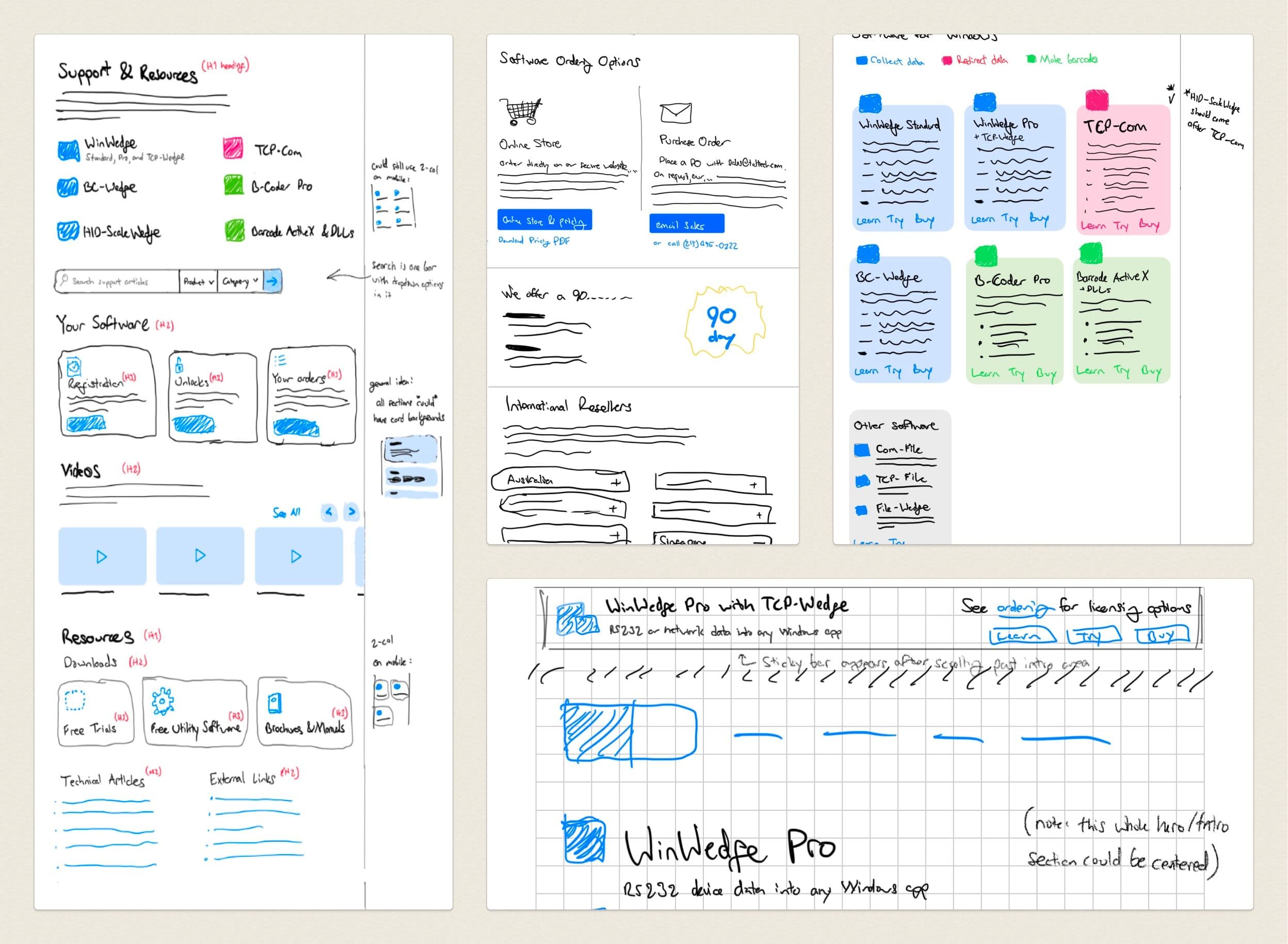
I created wireframes to communicate our requirements to the agency. These involved:
- Clarifying our desired structure with bespoke headings, groupings, and section priorities based on our customer knowledge
- Distinguishing product use cases on the home page, as our tech-based software names had often sent customers calling to ask
- Defining hero illustrations that would clarify each product’s compatible hardware and potential integration setups
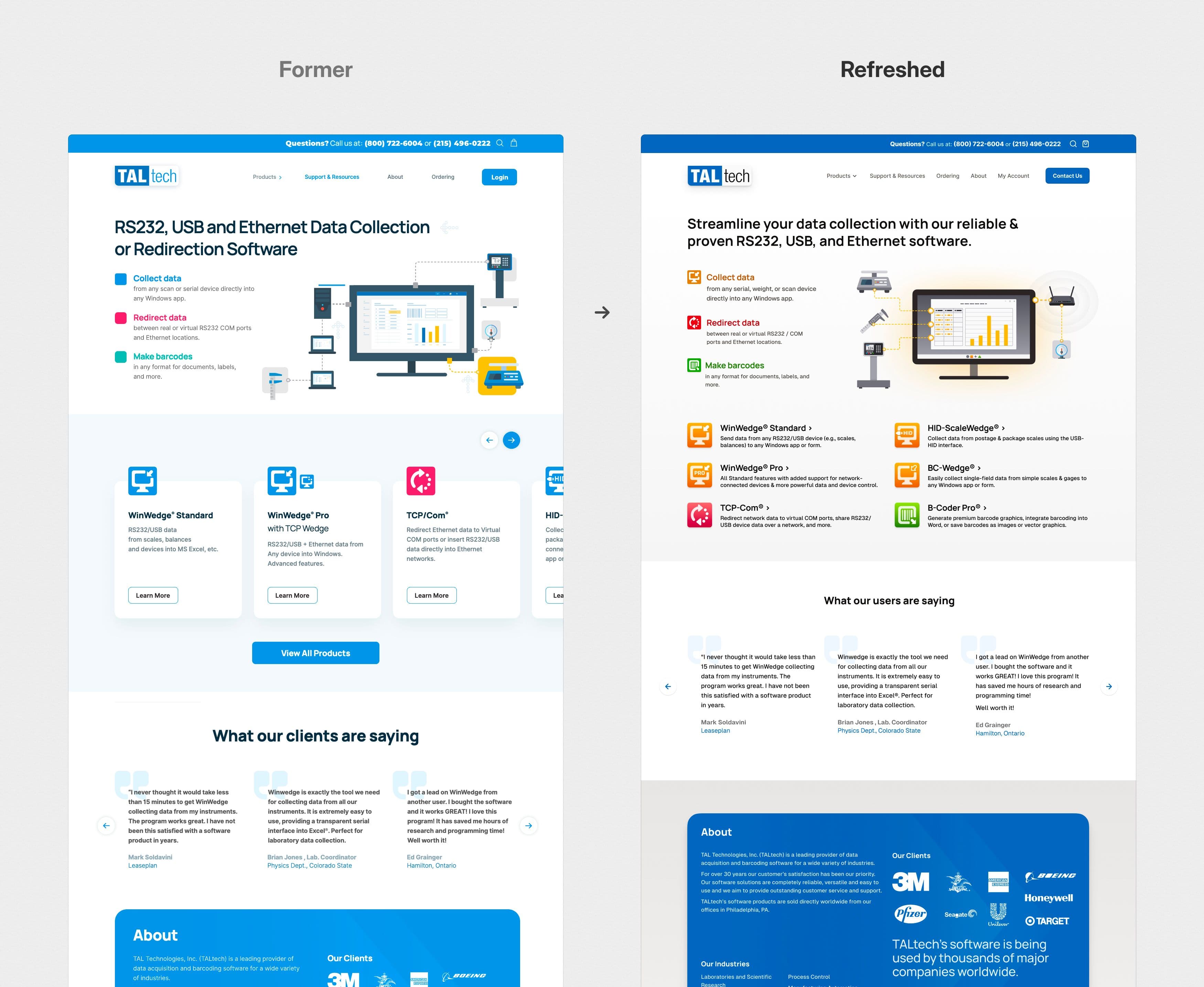
The agency’s initial designs didn’t quite fit our B2B audience. So, within WordPress and Elementor’s capabilities, I:
- Darkened and subdued the color palette to convey more maturity, working from Tailwind’s accessible colors
- Enhanced layout consistency and responsiveness across the site
- Refined product illustrations for a more polished, trustworthy appearance
- Reframed technical descriptions to emphasize benefits over specifications
- Overhauled support sections, creating a step-by-step Quick Start Guide and pruning outdated articles
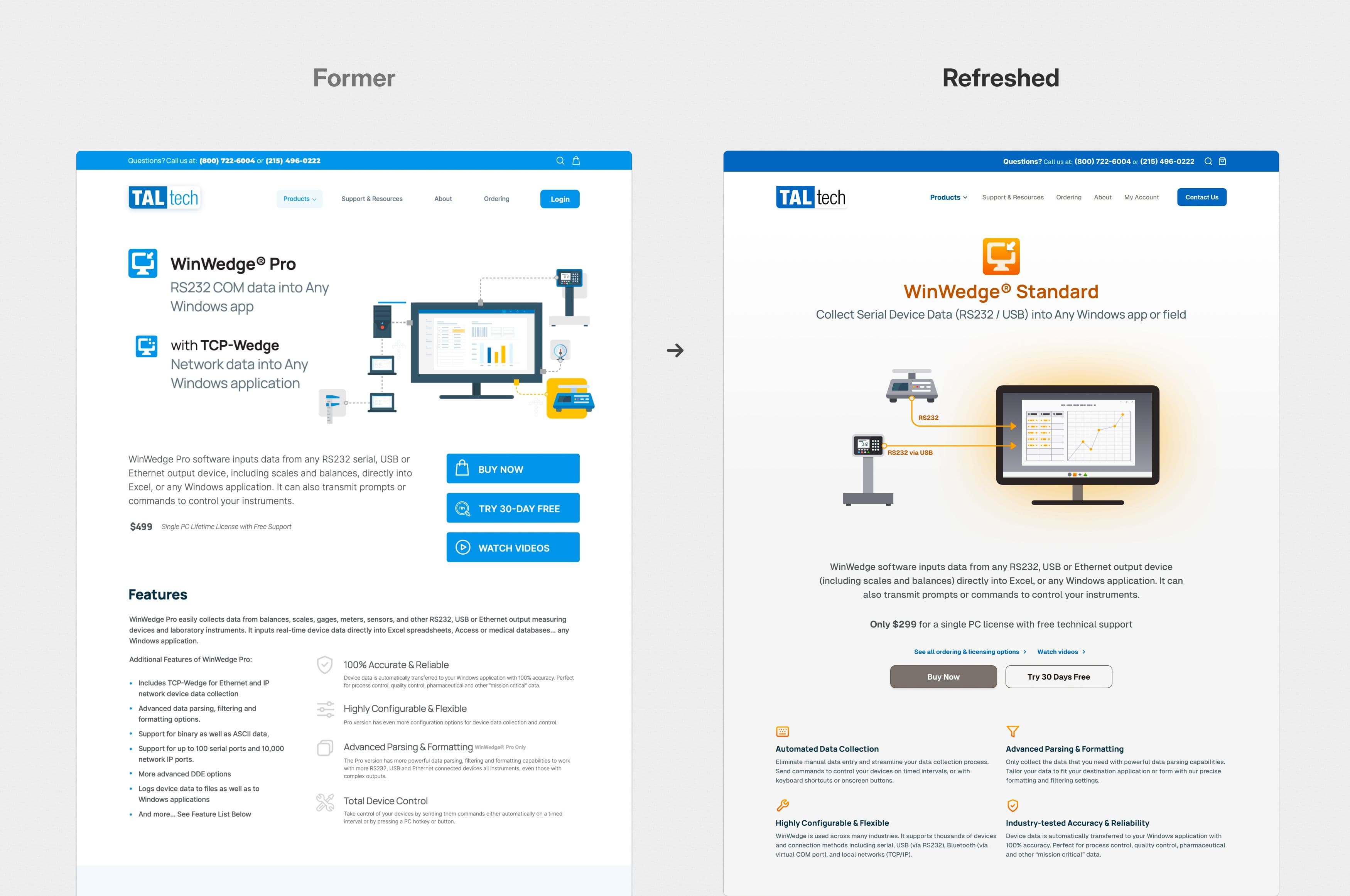
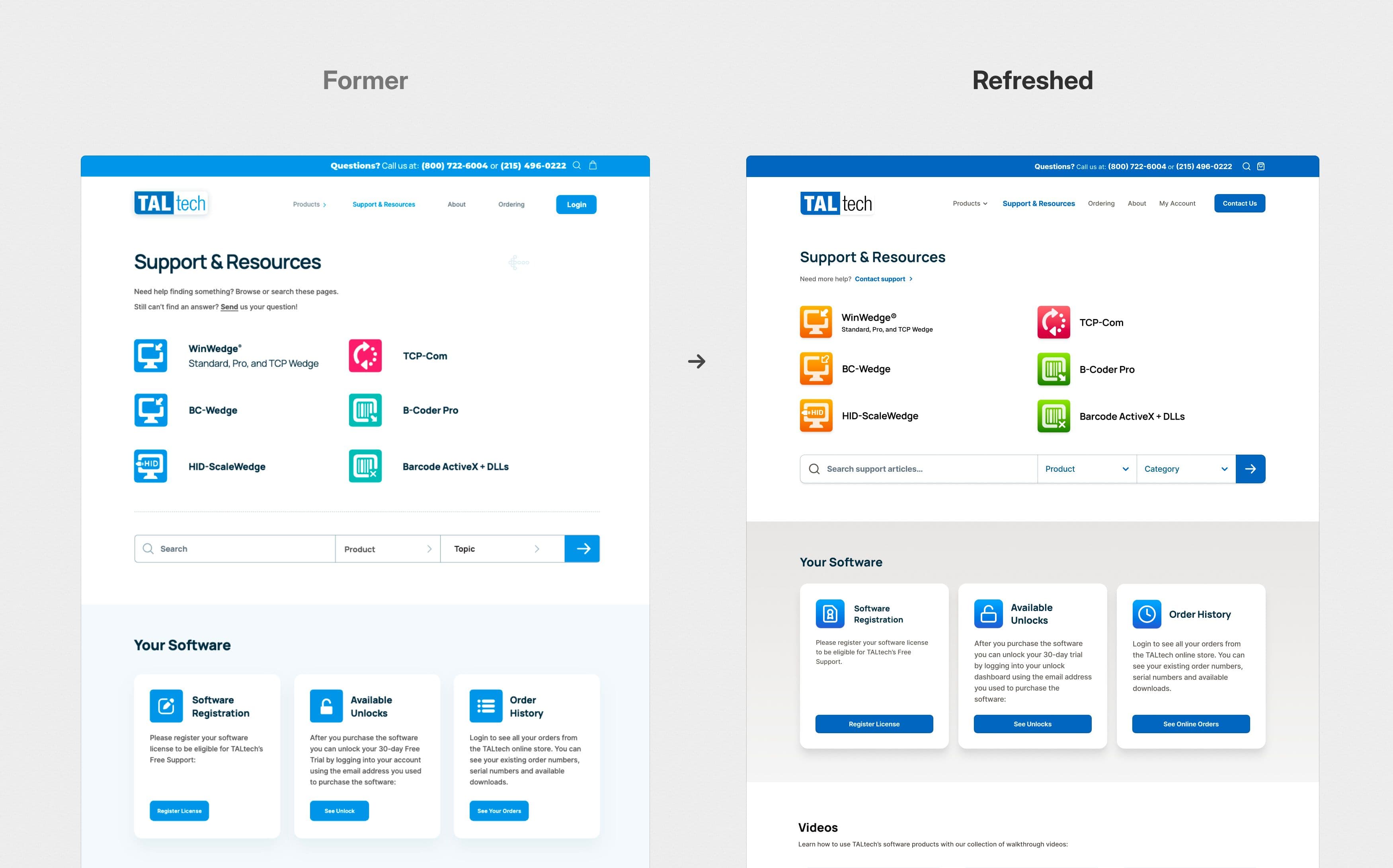
The WordPress plugin environment limited how much I could refine these features, but we saw real improvements like reduced support call volume, increased engagement with key pages, and smoother customer conversations thanks to better reference materials. The site became easier to navigate and looked more professional.
3. Improving documentation and tutorial videos
Another project was consolidating our scattered documentation and support resources. Product specifications, customer histories, and internal procedures were spread across various formats and locations, slowing down support response times.
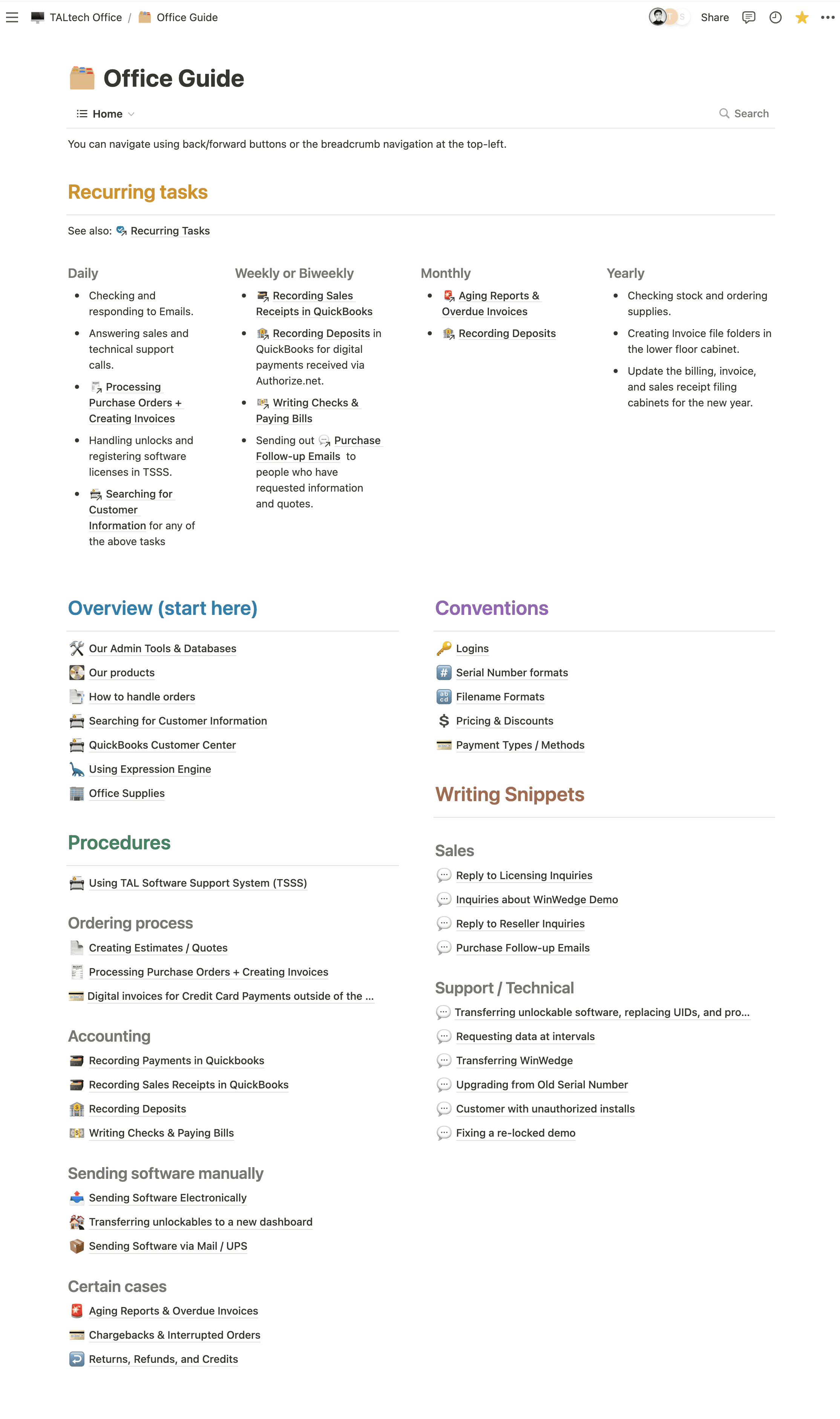
I digitized the employee guide into a searchable Notion wiki, creating a central hub for procedures, templates, and troubleshooting guides, which made it easier to find information quickly.
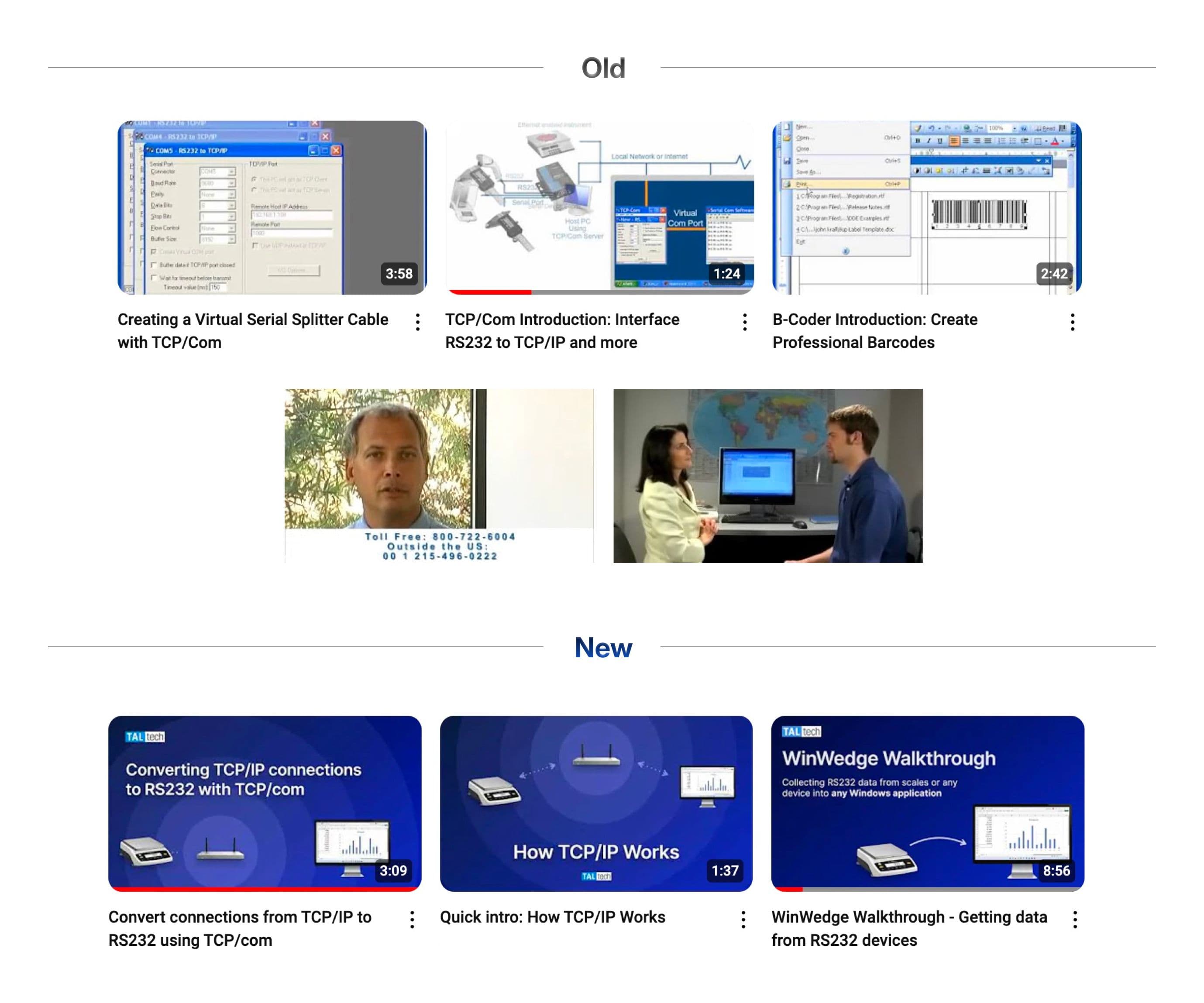
Their software tutorial videos from the 90s showed their age, with old Windows interfaces and unnecessarily lengthiness in explaining setup steps. So I proposed and handled the complete production of new, focused tutorials—from writing support-informed scripts to recording voiceovers and creating animations.
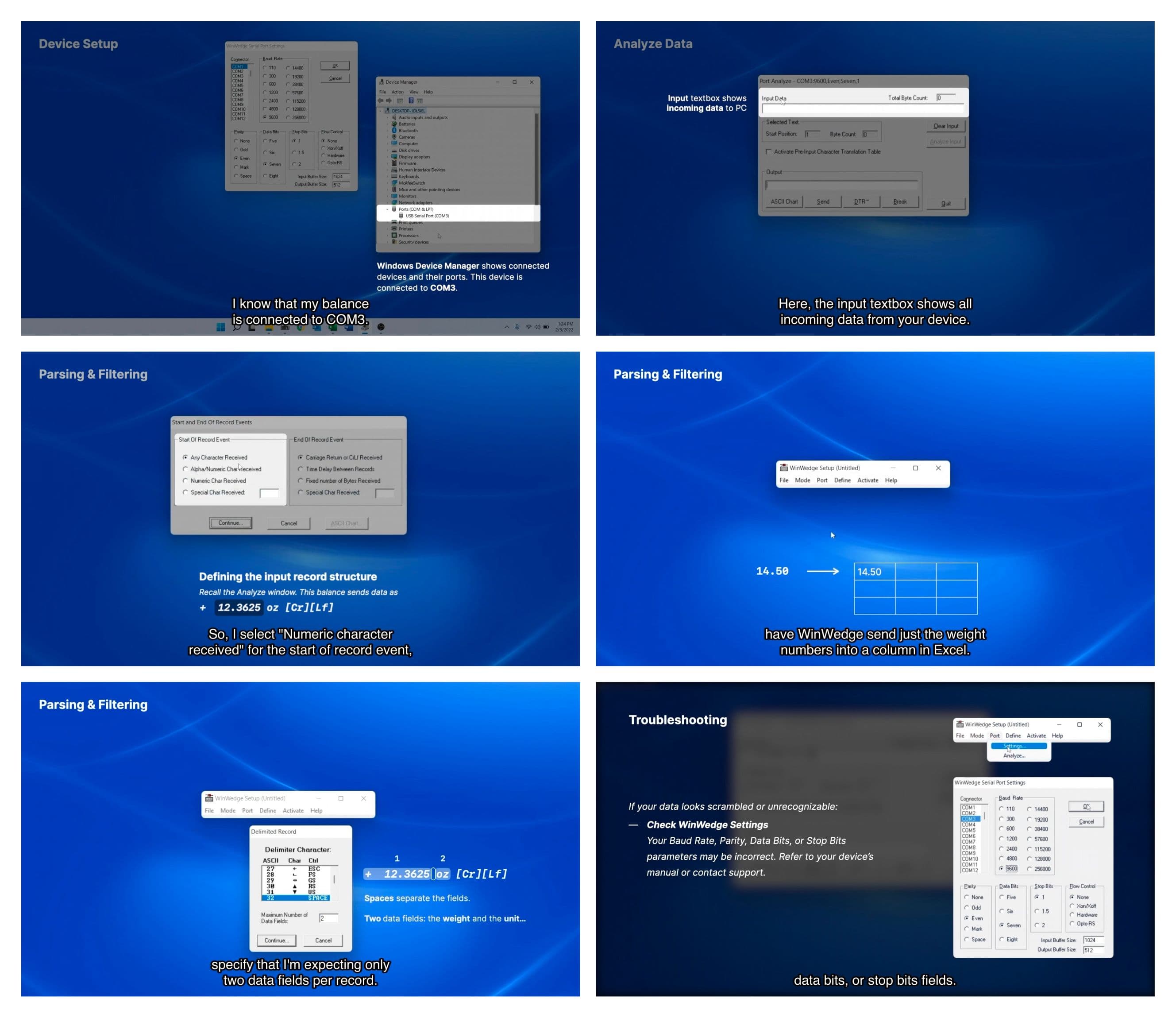
The new videos:
- Broke down complex setup processes into clear steps
- Used clearer, professional voiceovers and modern screen recordings
- Served as both setup guides and product demonstrations
Reflections
Working in customer support gave me direct insight into what confused users, which informed both the interface redesign and documentation work. More recently I’ve been scoping backend modernization—outlining data migration strategies, coordinating with external developers, and designing a self-serve license manager.
I’ve gotten good at shipping improvements as a solo designer in a constraint-heavy environment. I’m looking for my next role to be more collaborative—working with design peers and learning from people solving similar problems at larger scale.
Footnotes
- I considered migration implications for WinWedge’s use of Windows Dynamic Data Exchange (DDE), which WinUI 3 may not support natively. I started exploring whether DDE could work in a WinUI wrapper, but caught myself overengineering prematurely—this project was meant to be a guiding vision, not a full technical specification.
- WinWedge could evolve to include additional add-ons in the form of advanced blocks that users drag into their workflows. These could be monetized as add-ons, letting the product grow based on what users actually need
- Specific areas to test: Are object-oriented functions like “Get field” and “Save as variable” truly valuable for serial device data collection? How do users respond to losing menu-based navigation? These insights would help refine the balance between power and simplicity.